Microsoft Store
PumpDash for Windows
Windows 10 or 11, 64-bit · Free
PumpDash is waiting for approval in the Microsoft Store. This button becomes a store link the day it's listed.
Email buttons open your email app. You can also write to hopes@hopestinkery.com.
Before you install, make sure the pump uploads to Tandem Source* and, ideally, that Sugarmate is linked. See steps 1 and 2 of the install guide.
* Tandem, Tandem Mobi and Tandem Source are trademarks of Tandem Diabetes Care, Inc. PumpDash is not affiliated with or endorsed by Tandem Diabetes Care.
Get PumpDash from the Microsoft Store
Open the PumpDash listing with the button at the top of this page, or open the Microsoft Store app and search for PumpDash.
Select Get. Windows installs it and keeps it up to date for you.
Open PumpDash and sign in
Open PumpDash from the Start menu. The setup wizard opens the first time.
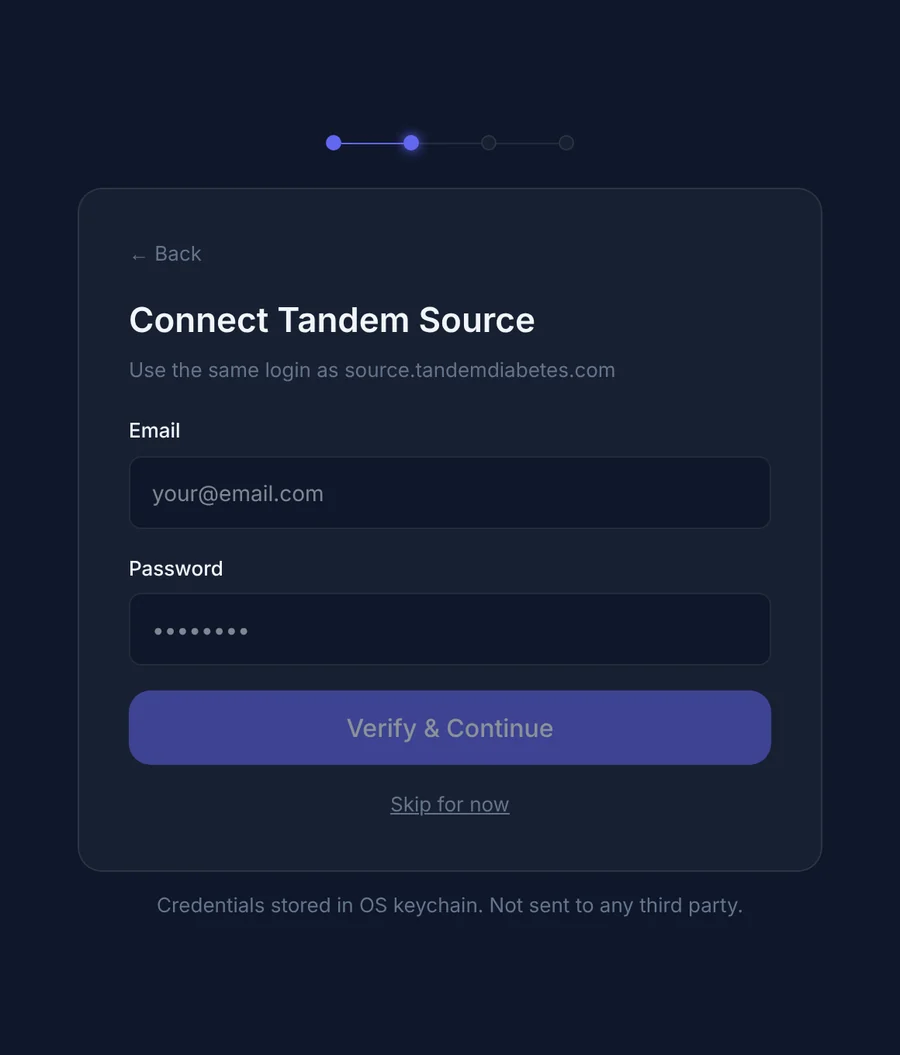
- Sign in with your Tandem Source* email and password, the same login you use at source.tandemdiabetes.com.
- Your sign-in is checked as you enter it and saved in Windows Credential Manager, so you stay signed in.
- It's the only account PumpDash needs: glucose and pump data both come from Tandem Source*.
Put it on your bar display
PumpDash opens at 1280 × 400, the size of a small bar display. Prefer a regular window? Skip this step; it resizes down to 800 × 300.
- Connect the display, then open Settings > System > Display and choose Extend these displays.
- Move the pointer to the top edge of PumpDash to show its title bar, then drag the window onto the bar display.
- Select Maximize in the title bar so it fills the display.
Make it yours
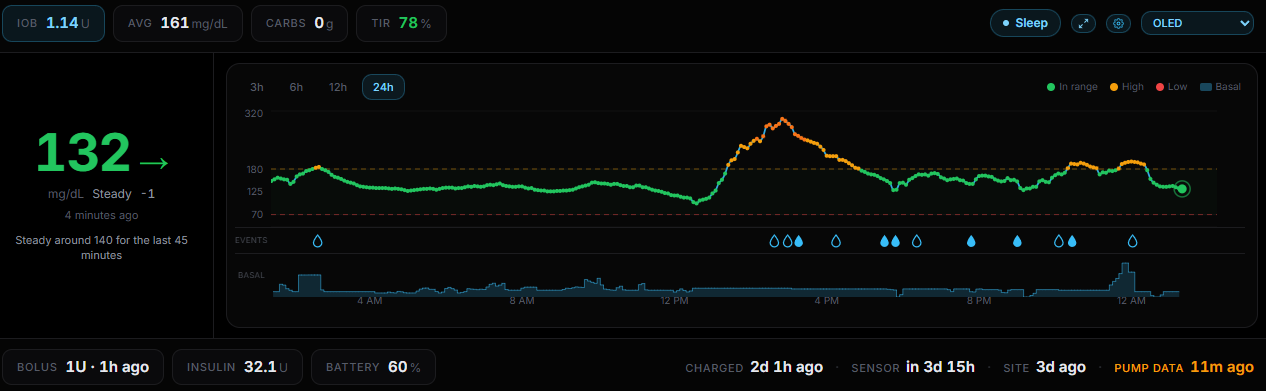
- Pick a theme from the menu at the top right: Midnight, OLED, Light, Slate, Glass or Retro Terminal.
- Choose 3, 6, 12 or 24 hours above the chart. PumpDash remembers your choice.
- Select the expand button for Glance mode, a large view you can read from across the room. Click anywhere or press Esc to go back.
- Open Settings (the gear) to choose which events show on the chart, how site age is shown, and whether minimizing tucks PumpDash into the system tray.
Good to know
Check the connection
Settings > Connection health shows when PumpDash last heard from Tandem Source* and how old its data is.
Sign out
Settings > Disconnect signs you out and removes your saved login from Windows Credential Manager.
Troubleshooting
If something looks off
I can't find PumpDash in the Microsoft Store.
It isn't listed yet. This page links to it as soon as it's approved. PumpDash needs Windows 10 or 11 on a 64-bit PC.
PumpDash disappeared when I minimized it.
Minimize to system tray is on. Click the PumpDash icon by the clock to bring it back, or turn the setting off in Settings.
Sign-in says my login is wrong.
Use the email and password that work at source.tandemdiabetes.com. If they work there but not in PumpDash, email us.
Glucose and pump data only update about once an hour.
Link Sugarmate by Tandem* to Tandem Source* on the pump user's phone, as in step 2 of the main install guide. The pump then uploads about every 5 minutes, and PumpDash picks up the faster rhythm on its own.
More answers on the support page.
Other devices
All install stepsNot a medical device.
PumpDash is not a medical device. Information it displays may be delayed, incomplete, estimated or unavailable. Never use it to calculate insulin doses or make treatment decisions; rely on your pump, CGM, meter, the official manufacturer apps and your healthcare team.
Not affiliated with or endorsed by Tandem Diabetes Care.
PumpDash is an independent app made by Hopes Tinkery LLC. It is not affiliated with, endorsed by, sponsored by or approved by Tandem Diabetes Care, Inc.